
Ever wanted to change your Steam name but couldn’t figure out where to start? You’re not alone. Many players get confused because Steam uses different names for account login and public profiles. If you’re searching for how to change steam account name, it’s important to know which name you actually want to update. The good news is that understanding the difference makes the process much easier.
A Steam account name change works differently from changing your public profile name. Your account name is used to sign in, while your profile name is what friends and other players see. Knowing this difference helps you avoid unnecessary changes or creating a new account.
In this guide, you’ll learn how to change Steam account name settings, update your profile, and understand what your Steam ID does. We’ll also explain how to find Steam ID and how to get Steam ID if you need it. Whether you want to change Steam name for a fresh look or better identify your account, you’ll find the answers here.
Can You Change Your Steam Username?
It depends on which Steam name you mean. Steam doesn’t let you change your permanent account login name or your SteamID. However, you can change your public profile name, which appears to other players across Steam’s community features.
Many gamers use the words username, account name, and display name interchangeably. That can make the process confusing. If you simply want friends to see a different gaming name, you don’t need a new account.
What You Can Change on Your Steam Account
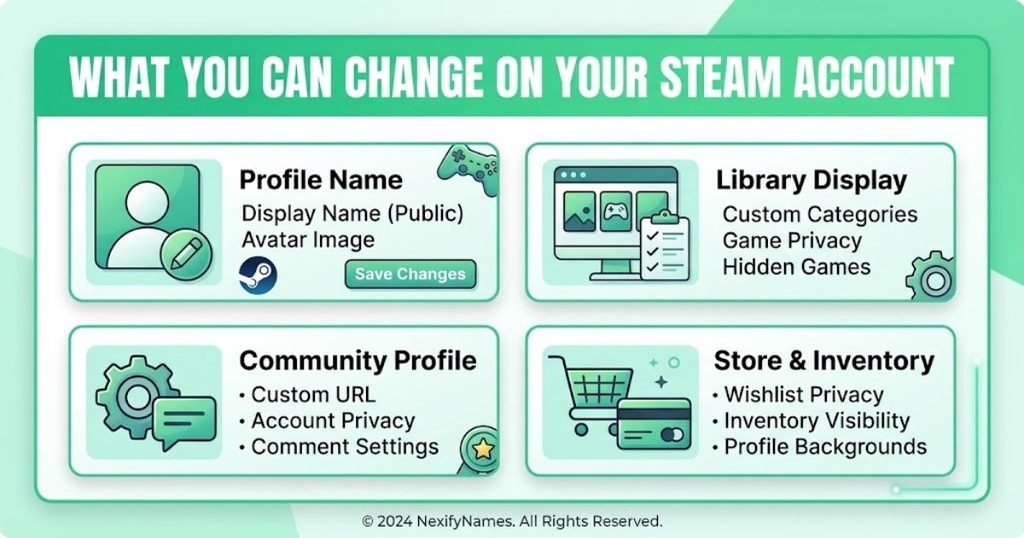
Steam lets you customize several parts of your public profile. These changes help you create a gaming identity that suits your personality without affecting your permanent account credentials.
You can generally change or manage these details:
- Steam profile name: The name other players see when interacting with you.
- Profile avatar: The image representing your account.
- Custom profile URL: Your personalized Steam Community profile address, where available.
- Profile summary: The text you use to introduce yourself.
- Profile privacy settings: Options that control who can view certain profile information.
For example, you could change your profile name from NightRider22 to PixelPhantom without creating another account. Your existing games and friends remain associated with your account.
What You Cannot Change on Steam
Steam treats certain account identifiers as permanent. Your original Steam account login name and SteamID cannot be changed, even by Steam Support.
Here’s what you should know:
- Steam account name: The original login identifier used to access your account.
- SteamID: The unique identifier associated with your Steam account.
- Existing account identity: Changing your profile name doesn’t create a different account or replace its underlying identifiers.
If you dislike your original login name, don’t worry. You can still choose a different public profile name and use it throughout your gaming activities.
Steam Account Name vs. Steam Profile Name: What’s the Difference?
Your Steam account name and profile name serve different purposes. The account name identifies your login, while the profile name represents you publicly. Knowing which one you want to change makes the entire process easier.
Here’s a quick comparison:
| Feature | Steam Account Name | Steam Profile Name |
| Main purpose | Account login | Public gaming identity |
| Can you change it? | No | Yes |
| Used to sign in | Yes | No |
| Seen by other players | Not primarily | Yes |
| Customizable | No | Yes |
| Affects your existing account | No change available | No, it changes your displayed name |
For example, your account login might be gamer4821, while your profile name is ShadowWolf. You can change ShadowWolf to FrostByte, but your original login name remains the same.
This distinction also matters when recovering an account. If Steam asks for your account name during login or recovery, entering your public profile name might not work.
How to Change Your Steam Username Step by Step
If you want to change the name other players see, you can do it through your Steam profile settings. The process is straightforward, and you don’t need to download additional software or create another account.
Follow these steps:
- Open Steam and sign in to your account.
- Select your profile name near the top of the Steam window.
- Open your profile page.
- Choose Edit Profile.
- Find the field for your profile name.
- Enter the new name you’d like to use.
- Save your changes.
Once you save the update, your new profile name should appear wherever Steam displays your public gaming identity. Some games or community pages may take a little time to reflect the change.
Remember, these steps change your public profile name, not the permanent account login name. If your goal is to replace the original login identifier, Steam doesn’t provide that option.
How to Change Your Steam Username on PC
You can update your Steam profile name directly through the desktop application on Windows, macOS, or another supported computer. The setting is part of your profile, so you won’t need to search through account security options.
Open the Steam client and navigate to your profile. Select Edit Profile, replace the current profile name with your preferred choice, and save your changes.
For example, you might switch from CasualGamer to QuestHunter before joining a new multiplayer community. Your games, achievements, and friends remain linked to the same account. Just make sure you’re editing the profile name rather than looking for a setting to rename your permanent login.
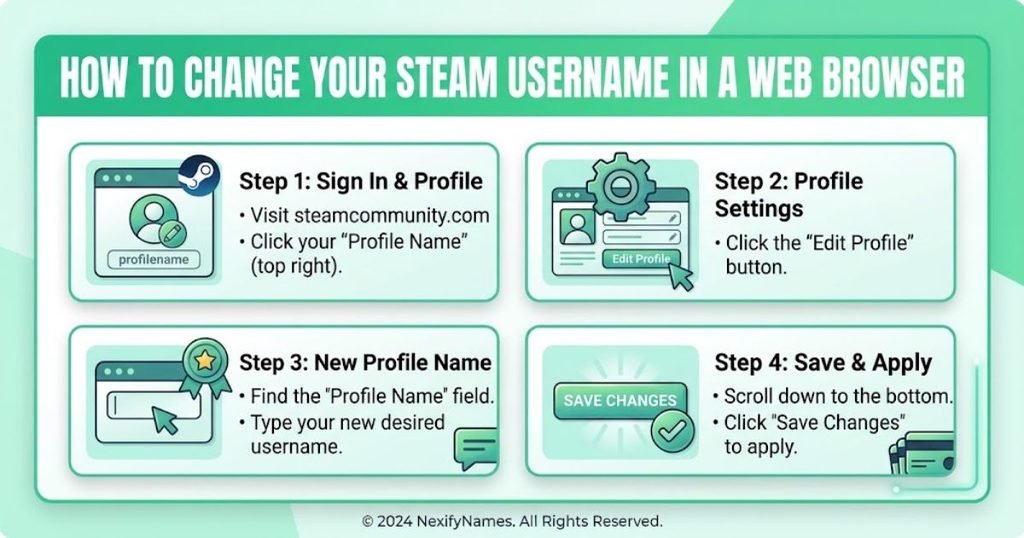
How to Change Your Steam Username in a Web Browser
You can also change your public Steam name through a web browser. This option can be helpful when the desktop client isn’t working correctly or you prefer managing your account online.
Open the official Steam website and sign in. Navigate to your Steam Community profile, select Edit Profile, and update the profile name field. Save the changes before leaving the page.
If the editor doesn’t work, check that you’re signed into the correct account and have a stable internet connection. You can also try another browser or reopen the profile editor. Never share your password with third-party websites that claim they can change your permanent Steam account name.
How to Change Your Steam Profile Name
Your Steam profile name is the public-facing name other players recognize. You can change it to a nickname, a creative gamer tag, or something that matches your current interests.
To update it, visit your Steam profile and select Edit Profile. Enter your preferred name in the profile name field, then save your changes. Choose something you’ll enjoy seeing in chats, multiplayer games, and community discussions.
Here are a few profile name ideas to inspire you:
- PixelPhantom
- FrostByte
- SilentNova
- ShadowQuest
- LunarRogue
You don’t have to settle on one name forever. You can update your public profile name again whenever you want, as long as your chosen name follows Steam’s rules.
Will Other Players See Your New Steam Profile Name?
Yes, other players can see your updated profile name wherever Steam displays your public gaming identity. Friends may notice the change in their friends list, chats, or multiplayer sessions. Your new name may also appear in community discussions and other Steam features.
Keep in mind that changing your profile name doesn’t erase every trace of your previous identity. Other people may have screenshots, messages, or records showing your old name. If privacy matters to you, review your profile settings and consider removing previous aliases where Steam provides that option.
Can You Change Your Steam Profile Name More Than Once?
Yes, you can change your Steam profile name multiple times. You’re not permanently locked into the first name you choose, so you can update it when your interests or gaming style change.
For example, you might choose a funny name for casual gaming, then switch to a cleaner gamer tag when joining a competitive team. Just remember that your permanent account login name and SteamID remain unchanged.
Does Steam Keep Your Previous Profile Names?
Steam can display a history of your previous profile names through its alias feature. This helps other users recognize you if you’ve changed your name several times. Steam’s profile interface has traditionally shown up to 10 previous aliases, although available controls and displays may change.
If you’d rather not show your old names, look for the option to clear previous aliases on your profile. Clearing this visible history doesn’t guarantee that every trace of an old name disappears from the internet. Other users may have saved screenshots or copies of public content.
How to Remove Old Steam Profile Names
If your previous Steam names no longer represent you, you may be able to clear the alias history displayed on your profile. The option is separate from changing your current profile name.
Try these steps:
- Open your Steam Community profile.
- Find your current profile name or alias menu.
- Look for the option labeled Clear Previous Aliases.
- Select it if the option is available.
- Follow any confirmation prompt displayed by Steam.
The exact interface may vary with Steam updates. If you can’t find the option, check your profile through a web browser or consult Steam Support. Clearing aliases only affects the history Steam lets you manage; it doesn’t delete screenshots or records other people have saved.
Can You Change Your Steam Custom URL?
Your Steam custom URL is the personalized address people can use to visit your Community profile. It’s different from your account login name, profile name, and SteamID.
To check it, open your profile and select Edit Profile. Look for the Custom URL field, where available. You can edit the custom portion of the address or remove it if you prefer to use the default profile link. Save any changes before leaving the page.
Changing your custom URL doesn’t change your underlying Steam account identifier. If someone needs to identify your account reliably, sharing your profile link or SteamID may be more useful than sharing your display name alone.
What Is a SteamID and How Is It Different From Your Username?
A SteamID is a unique identifier associated with your Steam account. Unlike your public profile name, it isn’t designed to be a memorable nickname. One commonly used format is SteamID64, a 17-digit numerical identifier.
Your profile name might be LunarRogue, while your SteamID64 is a long string of numbers. You can change the profile name, but the SteamID remains associated with the account.
You may need your SteamID when troubleshooting account issues, configuring certain game servers, or identifying a profile. Don’t confuse it with the account login name you use to sign in.
Why Can’t You Change Your Steam Account Name?
If you’re trying to change the original login name, you won’t find an editable field for it. Steam treats the permanent account name as an account identifier, so it can’t be renamed through ordinary settings.
However, you can still change the name people see on your profile. Open Edit Profile and update the profile name field instead.
Before making any major decisions, consider whether you really need a new account. Creating another account just to change your public name can complicate access to your existing games, purchases, friends, and progress. A profile name change is usually the simpler solution.
Do You Need a New Steam Account to Get a Different Username?
No, you generally don’t need another account just to use a different public gaming name. Changing your profile name gives you a fresh identity without abandoning your existing Steam account.
Starting over can create unnecessary problems. Your purchases, game access, achievements, inventory, and friends are associated with your existing account, and Steam doesn’t offer a general account-merging feature that combines everything into a new account.
If your concern is the original login name, a new account may seem tempting. Before taking that step, review Steam’s account policies and consider what you’d lose access to. For most players, changing the profile name is enough.
Tips for Choosing a Good Steam Profile Name
A good Steam profile name should be easy to remember, simple to read, and suited to your personality. You might prefer something funny, mysterious, competitive, or inspired by your favorite games. Try to choose a name that still feels right after the novelty wears off.
Here are 12 ideas to get you started:
- EchoKnight
- PixelVortex
- CrimsonComet
- NeonSpecter
- MysticRaven
- TurboFalcon
- ArcticPhantom
- NovaStriker
- VelvetShadow
- CosmicBandit
- RogueOrbit
- EmberLegend
Before choosing one, check how it looks in a friends list or game lobby. Avoid sharing personal information such as your full name, phone number, or birth date. Your profile name is public-facing, so a little privacy awareness goes a long way.

What to Do If You Can’t Change Your Steam Profile Name
Sometimes the profile editor doesn’t work as expected. The problem may be a connection issue, an outdated client, or a temporary Steam service problem. Try these checks before assuming something is wrong with your account.
- Confirm that you’re signed into the correct account.
- Check your internet connection.
- Restart the Steam client.
- Try editing your profile in a web browser.
- Make sure you’ve saved your changes.
- Check for messages or restrictions affecting your profile.
If none of these steps helps, consult Steam Support for account-specific guidance. If Steam has restricted a name for violating its rules, follow the instructions shown in your account rather than repeatedly submitting the same name.
Can You Hide Your Steam Profile Name From Other Players?
You generally can’t make your current profile name completely invisible wherever Steam uses it to identify you. Your profile name serves as your public gaming identity, even if you restrict access to other profile information.
However, you can adjust your profile privacy settings to control who sees details such as your game information, friends list, and inventory. The available options depend on the specific profile section.
If you’re trying to improve privacy, review the settings on your Steam profile and choose the restrictions that suit you. Remember that hiding certain profile details isn’t the same as hiding your displayed name in every Steam feature.
How to Change Your Steam Username on the Mobile App
You can manage your public profile through Steam’s mobile app, although the interface may differ from the desktop version. The important thing is to locate your profile editing options rather than searching for a permanent account-name setting.
Open the Steam mobile app and sign in. Navigate to your profile, then look for the option to edit your profile details. If the profile name field is available, enter your new name and save the changes.
If you can’t find the setting in the app, open Steam Community in your phone’s browser and try editing your profile there. Remember, this changes your public profile name, not your original account login name.
How to Edit Your Steam Profile Name on Android and iPhone
The process is similar on Android and iPhone, although button placement may vary with app updates. Start by opening Steam and accessing your profile page.
Look for Edit Profile, update your profile name, and save your changes. If the mobile app doesn’t show the right controls, try using a browser and signing in to the official Steam website.
Avoid third-party apps that ask for your login credentials to change your name. You should only enter your password through official Steam sign-in pages.
Does Changing Your Steam Profile Name Affect Your Games or Friends List?
Changing your public profile name doesn’t normally affect your game library, purchases, achievements, saved progress, or friends list. These remain associated with your existing Steam account rather than the name other players see.
Your friends may see your updated name in Steam, and some games may take a little time to reflect the change. If a game uses its own separate nickname system, you may need to update that name through the game’s settings instead.
For example, changing your Steam profile name won’t necessarily change a separate in-game name managed by a publisher account. Check the game’s own account settings if its displayed name remains different.
Will Changing Your Steam Name Affect Game Progress, Achievements, or Friends?
No, changing your Steam profile name doesn’t ordinarily reset achievements, remove friends, or erase game progress. You’re updating the name displayed to other users, not replacing your Steam account.
Your existing purchases and account-related records stay associated with the same account. However, some games use separate profiles or external accounts, so their names may need to be changed independently.
If you notice a game displaying your old name, restart it or check its account settings before making further changes.
How to Find Your Steam Account Name If You Forgot It
If you’ve forgotten your Steam account login name, your public profile name may not help you sign in. These two names can be different, so you’ll need to locate the original account identifier.
Start by checking whether you’re still signed in to Steam on a trusted device. You can also review saved login details in your password manager, if you use one. If you can’t locate the account name, visit Steam’s official account recovery page and follow its prompts to find or recover your account.
Never share your password or verification codes with someone claiming they can recover your account privately. Use Steam’s official recovery process to protect your account.
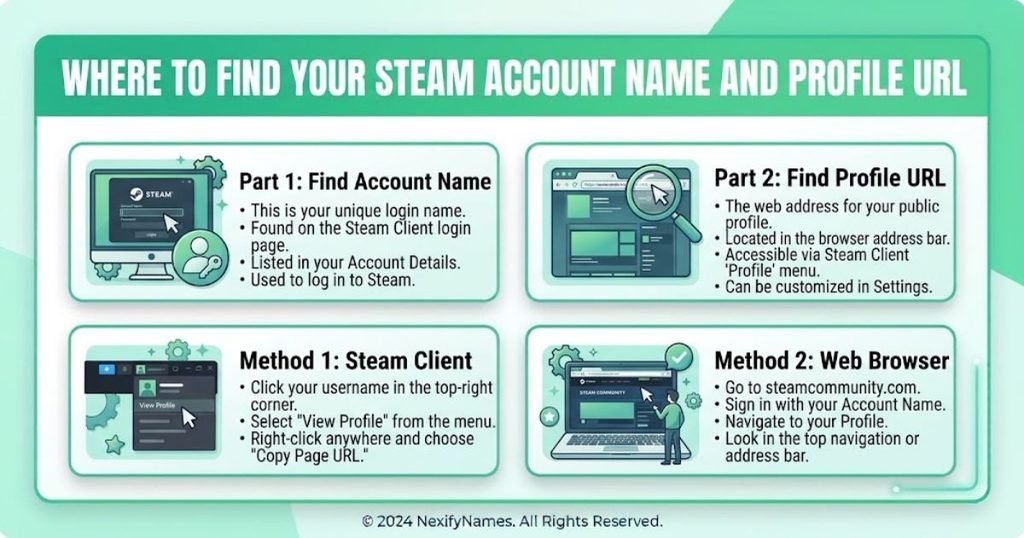
Where to Find Your Steam Account Name and Profile URL
Your profile URL is available from your Steam Community profile. Open your profile in a browser and copy the address from the browser’s address bar. If you’ve set a custom URL, the link may contain your chosen text; otherwise, it may use a numerical identifier.
Your account login name is different. If you don’t remember it, check a trusted device where you’re already signed in or use Steam’s official account recovery tools. Don’t assume the name shown publicly on your profile is your login name.
Frequently Asked Questions
1. How to change Steam account name without losing games?
You can’t rename your permanent login name, but changing your public profile name keeps your existing games, purchases, and achievements intact.
2. Can I change my Steam username using my phone?
Yes, you can edit your public profile name using Steam’s mobile app or a browser, depending on available profile editing options.
3. How do I find my Steam ID?
Open your Steam profile and check its URL. Your SteamID64 may appear in the address, depending on your custom URL settings.
4. Can two Steam users have the same profile name?
Yes, Steam profile names don’t need to be unique. Multiple players can use the same displayed name, making profile links useful for identification.
5. Does changing my Steam profile name change my login details?
No, your login credentials remain unchanged. Your profile name only changes how your gaming identity appears to other Steam users.
6. Why does my old Steam name still appear in a game?
Some games cache profile information or update names slowly. Restart the game and check its account settings if the old name persists.
7. Can Steam Support change my permanent account name?
No, Steam Support cannot change your permanent account name or SteamID. You can change your public profile name through the profile editor instead.
Conclusion
Understanding how to change Steam account name starts with knowing which name you want to update. Your permanent account login name and SteamID cannot be changed, but your public profile name can be customized to match your gaming style.
To give your profile a fresh look, open Steam, select your profile, choose Edit Profile, and save your preferred name. You can also manage your custom URL, review your privacy settings, and clear previous aliases when the option is available.
There’s usually no need to create another account just because you’ve outgrown your current gamer tag. Choose a name you like, keep your login credentials secure, and enjoy your next gaming session with a fresh identity.