Changing your Xbox name doesn’t have to feel confusing or complicated. If you’re tired of your old Gamertag, you can update it in just a few steps. Whether you play casually or spend hours on Xbox Live, your name helps shape your gaming identity. That’s why choosing the right one matters.
In this guide, you’ll learn how to change Xbox Gamertag on different devices. We’ll explain the Xbox Gamertag change process in simple steps. You’ll also see what happens to your profile, friends, and games afterward. Plus, we’ll cover useful tips for choosing a better name.
If you’re searching for how to change your Xbox Gamertag, you’re in the right place. We’ll also explain Xbox Gamertags, the Xbox name change process, and important things to know before making the switch. Let’s get started.
What Is an Xbox Username?
When people say “Xbox username,” they usually mean their Xbox Gamertag. It’s the name connected to your Xbox gaming profile and the identity other players recognize.
Your Gamertag follows your Xbox account across supported Xbox experiences. It’s different from the email address you use to sign into your Microsoft account.
For example, you might sign in with a personal email address while your gaming profile uses a name like NovaStrike. The email identifies your account, while the Gamertag represents your gaming identity.
Microsoft’s support documentation also identifies the Xbox Gamertag as the name gamers use to identify themselves within Xbox.
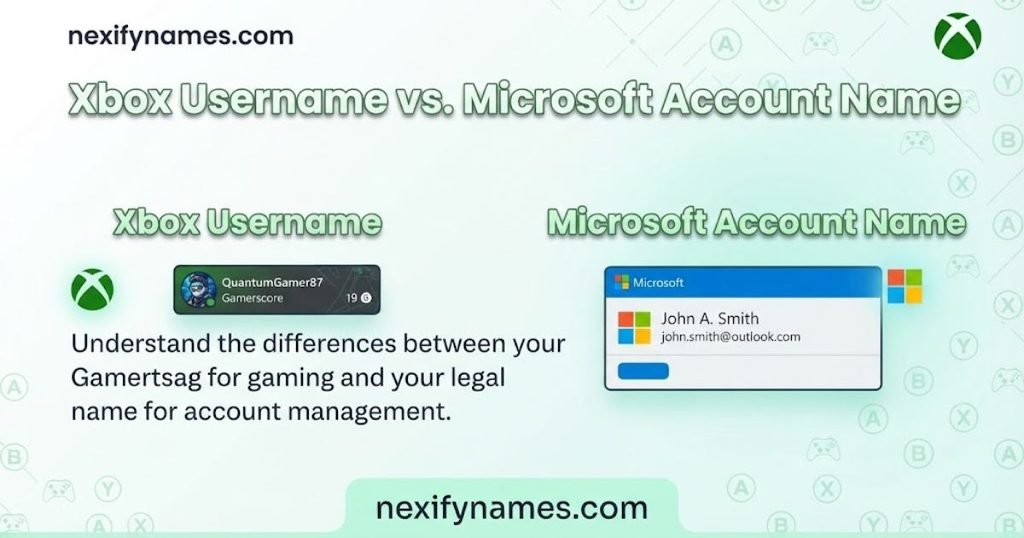
Xbox Username vs. Microsoft Account Name
This is where many people get confused.
Microsoft lets you edit your account display name, but that setting isn’t the same as your Xbox Gamertag. Microsoft specifically states that changing your display name does not change your Gamertag.
Here’s the difference:
| Name | What it represents | Changes your Xbox Gamertag? |
| Xbox Gamertag | Your Xbox gaming identity | Yes |
| Microsoft display name | Your broader Microsoft profile name | No |
| Microsoft account email | Your account sign-in information | No |
| Windows account display name | Name shown in Windows | No |
So, if your goal is an Xbox name change, don’t edit the wrong profile setting.
How to Change Xbox Username on Xbox Series X|S
If you’re using an Xbox Series X or Series S, you can start the Gamertag change directly from the console.
Xbox menus can change as Microsoft updates the console interface. Therefore, the exact wording may differ slightly on your screen. Look for your profile and Gamertag customization options.
Step 1: Turn On Your Xbox
Start your Xbox Series X|S and sign into the profile connected to the Gamertag you want to change.
If several people use the same console, check the profile carefully. You don’t want to edit another family member’s Xbox account by mistake.
Step 2: Open the Xbox Guide
Press the Xbox button on your controller.
The Guide gives you quick access to your profile, settings, games, friends, and other account features.
Step 3: Open Your Profile
Select your profile icon to open your account options.
From there, move into the section where you can view or customize your Xbox profile.
Step 4: Choose Profile Customization
Open your profile customization area.
Look for an option related to editing or customizing your profile. Xbox may present the menu slightly differently depending on the current software version.
Step 5: Select Your Gamertag
Choose your existing Gamertag.
This should take you toward the option for selecting a new Xbox gaming name.
Step 6: Enter Your New Xbox Username
Type the Gamertag you’d like to use.
Don’t rush this part. Think about how the name looks, sounds, and feels when other players see it.
A strong Gamertag is usually:
- Easy to remember
- Easy to spell
- Easy to pronounce
- Appropriate for multiplayer
- Distinctive enough to recognize
Step 7: Check Gamertag Availability
Xbox will check your selected name.
If the exact version isn’t available, you may need to try another variation. A small change can turn a common name into something more personal.
For example, instead of ShadowFox, you could try ShadowFoxNova or TheShadowFox.
Step 8: Review Your New Gamertag
Before confirming, look closely at the final version.
Check the spelling, capitalization, numbers, and any suffix attached to the name. Don’t assume the preview will look exactly like the name you originally typed.
Step 9: Confirm the Change
Once everything looks correct, confirm your new Gamertag.
Your existing Xbox profile remains associated with the account. You’re changing the gaming name rather than creating an entirely separate Microsoft account.
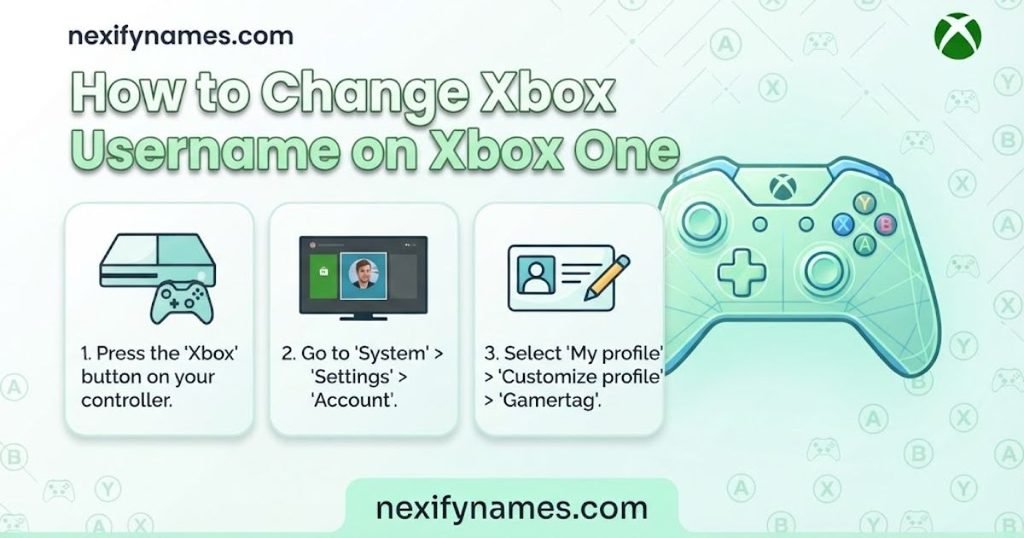
How to Change Xbox Username on Xbox One
The Xbox One process follows the same general idea.
Sign into the correct Xbox account, open your profile, and find the Gamertag customization option. From there, enter your preferred name and review the available version.
A typical path looks like this:
- Press the Xbox button.
- Open Profile & system.
- Select your profile.
- Open My profile.
- Choose the profile customization option.
- Select your current Gamertag.
- Enter the new name.
- Check its availability.
- Review the result.
- Confirm the change.
If your Xbox One displays slightly different labels, focus on finding the profile and Gamertag editing controls rather than matching every menu word exactly.
How to Change Xbox Username Online
You don’t have to use your console for every Xbox Gamertag change.
You can manage your Xbox profile online through Xbox.com. This can be especially convenient when you’re using a PC, tablet, or phone.
Sign in using the Microsoft account connected to your Xbox profile. Then open your Xbox profile and look for the option to edit your Gamertag.
Step 1: Go to Xbox.com
Open Xbox.com in your browser.
Sign in with the Microsoft account connected to the Xbox profile you want to modify.
Step 2: Open Your Xbox Profile
Open your account or profile menu after signing in.
Make sure the profile shown belongs to the correct Xbox account.
Step 3: Find Your Gamertag
Locate your current Gamertag on your Xbox profile.
Look for the edit option associated with it.
Step 4: Enter Your New Name
Type your preferred Gamertag into the available field.
If your first choice isn’t available, experiment with meaningful variations instead of adding random numbers.
Step 5: Review the Preview
Pay attention to how Xbox displays the name.
Check every character before you continue. This is your chance to catch spelling mistakes or an unwanted suffix.
Step 6: Confirm Your New Gamertag
If the final version looks right, confirm the Xbox Gamertag change.
Afterward, check your profile to make sure the updated name appears correctly.
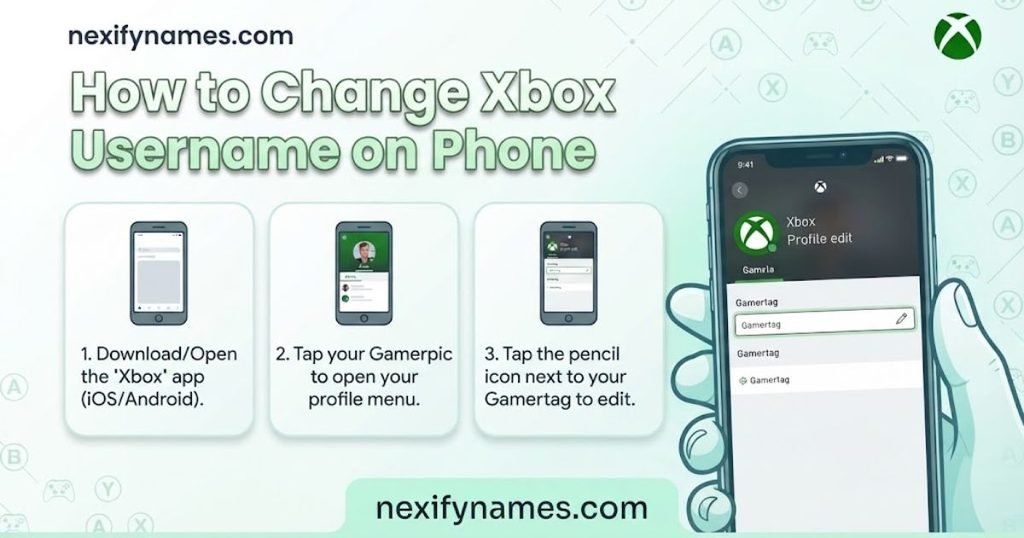
How to Change Xbox Username on Phone
You can handle an Xbox username change from a phone by using a mobile browser.
Open Xbox.com and sign into the Microsoft account connected to your Xbox profile. Then open your profile and locate your Gamertag editing controls.
The mobile layout may look different from the console interface. That’s normal. Focus on finding your profile, current Gamertag, and edit option.
If the Xbox mobile app doesn’t provide the control you’re looking for, the browser version of Xbox.com can be a practical alternative.
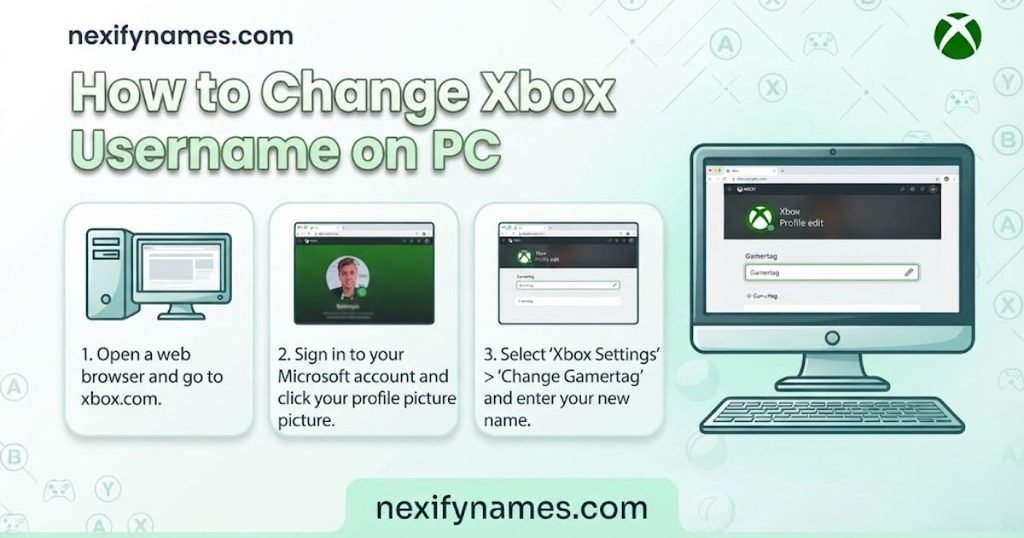
How to Change Xbox Username on PC
A PC is another convenient way to update your Xbox Gamertag.
You don’t need to rename your Windows account just because you want a different Xbox gaming name. Microsoft treats those names separately.
Use Xbox.com to access your Xbox profile, then locate your Gamertag editing option.
The basic process is:
- Open Xbox.com.
- Sign in.
- Open your Xbox profile.
- Find your current Gamertag.
- Select the edit option.
- Enter your preferred name.
- Check availability.
- Review the final version.
- Confirm the change.
Does It Cost Money to Change Your Xbox Username?
The cost of a Gamertag change can depend on your account and circumstances.
Rather than assuming every Xbox Gamertag change has the same price, check the final confirmation screen before completing the process. That screen is the useful point to verify whether a charge applies to your particular change.
If you’re asked to pay, double-check the account and new Gamertag first. You don’t want to spend money changing the wrong profile or choosing a name you don’t actually like.
Why Does My Xbox Username Have Numbers?
You may sometimes see numbers attached to a Gamertag.
This can happen when the base name you want overlaps with another player’s name under Xbox’s current Gamertag system. A suffix or discriminator can help distinguish otherwise similar names.
For example, you might prefer Nova, but another player may already use that base name. Xbox can therefore present a differentiated version.
If you want a cleaner-looking name, try creating something more distinctive from the beginning.
Instead of:
- Nova
- Shadow
- Blaze
Consider:
- NovaOrbit
- ShadowHarbor
- BlazeCircuit
That gives your gaming identity more personality without relying entirely on random digits.
How to Choose a Good Xbox Username
A Gamertag can stick with you for a long time, so choosing one deserves more thought than it gets.
You don’t need the longest or most complicated name. A simple name with personality can be much easier for friends to remember.
Keep Your Gamertag Memorable
Short, recognizable names are easier to remember.
Think about names that someone could hear once and recall later. PixelNova is easier to repeat than a long string of random characters.
Avoid Overcomplicated Spellings
Replacing every letter with numbers can make your name difficult to search.
For example, N1ghtW0lf may look interesting, but NightWolf is easier to read if it’s available.
Match Your Gaming Personality
Your Gamertag can reflect how you play.
Competitive players may prefer sharper names. Casual players might choose something playful, cozy, or completely random.
There isn’t one correct style. The important part is that the name feels natural to you.
Choose a Name You’ll Like Long-Term
Trends disappear quickly.
A joke that feels hilarious today might feel awkward later. If you want a long-term Xbox identity, choose something that can grow with you.
Xbox Username Ideas
Need inspiration before making an Xbox name change? Start with a style that matches your personality.
We’ve included more examples than a typical short list, so you have plenty of directions to explore.

Cool Xbox Names
- ShadowNova
- FrostViper
- NightOrbit
- BlazeVector
- PhantomRush
- VoidStriker
- StormPixel
- LunarRogue
- TitanPulse
- RogueCircuit
- ArcticVex
- NovaHunter
- DarkVelocity
- EchoStrike
- IronPhantom
Funny Xbox Names
- PotatoAim
- OopsRespawn
- LaggingAgain
- SnackCommander
- MissedAgain
- ButtonMasher
- CampedHere
- NoScopeMaybe
- AFKForSnacks
- LoadingBro
- WiFiWarrior
- IPressedWrong
- AlmostWon
- DefinitelyNotAFK
- ControllerChef
Cute Xbox Names
- MochiPixel
- BunnyNova
- CozyBean
- PeachyPanda
- TinyMochi
- FluffyCloud
- HoneyPixel
- CookieNova
- StarryBean
- SoftPanda
- BerryBubbles
- LittleOrbit
- CozyKitten
- MoonMochi
- SugarPixel
Aesthetic Xbox Names
- MoonlitNova
- VelvetOrbit
- LunarEcho
- SilverBloom
- MysticPixel
- TwilightVibe
- CloudyOrbit
- DreamyNova
- StarlitEcho
- SoftVelocity
- MidnightBloom
- LunarMist
- VelvetMoon
- CosmicWhisper
- QuietOrbit
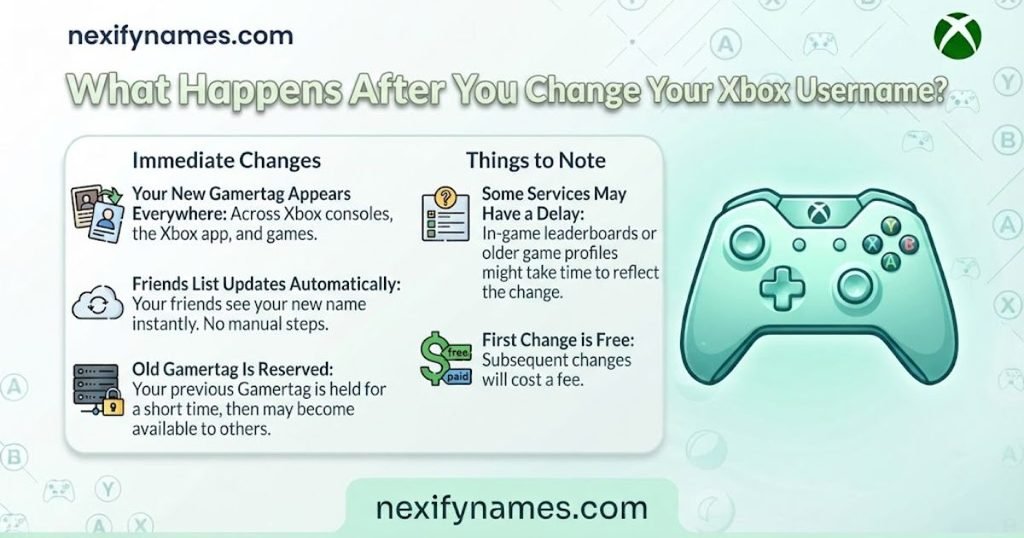
What Happens After You Change Your Xbox Username?
After a successful Gamertag change, your Xbox profile uses the new gaming name.
Your account isn’t replaced simply because you selected a different Gamertag. The change applies to the gaming identity associated with your existing profile.
However, individual games or connected services may not refresh instantly. If an old name appears somewhere, give the service a moment and try restarting the game or app.
You can also sign out and back in if the profile information looks outdated.
Will My Friends See My New Xbox Username?
Your updated Gamertag becomes the name associated with your Xbox gaming profile.
Friends may notice the change the next time they see your profile, interact with you, or play with you. If you’ve selected a completely different name, it can be helpful to tell close gaming friends beforehand.
That simple heads-up prevents the classic, “Wait, who is this?” moment when you join a party.
Can I Change My Microsoft Account Name Instead?
Yes, you can change your Microsoft account display name separately.
However, that won’t accomplish the same thing as an Xbox Gamertag change. Microsoft explicitly says the display name and Gamertag are separate.
If you want to change the name shown across certain Microsoft services, edit your Microsoft account display name.
If you want to change the name associated with your Xbox gaming identity, change your Gamertag.
Common Mistakes When Changing an Xbox Username
A Gamertag change is simple, but a few mistakes can create unnecessary headaches.
Changing the Wrong Name
Editing your Microsoft display name won’t give you a new Xbox Gamertag.
If your goal is an Xbox name change, make sure you’re editing the Gamertag.
Using the Wrong Microsoft Account
Some people have multiple Microsoft accounts.
Before making changes, check that you’re signed into the account connected to the Xbox profile you actually use.
Choosing a Name Too Quickly
Don’t pick the first available name just because you’re excited to change your old one.
Say it aloud. Type it into a message. Imagine a friend calling you by it.
If it still feels right, you’re probably on better ground.
Ignoring the Gamertag Preview
Always inspect the final version.
Look for unexpected numbers, spelling mistakes, or other changes before confirming.
Forgetting About the Number Suffix
A name may look perfect when you type the base version but appear differently after Xbox applies its current naming system.
Check the actual result rather than assuming it will remain identical.
Using Inappropriate Words
Choose a Gamertag that follows Xbox’s rules and community expectations.
A funny name doesn’t need offensive language to stand out.
Is It Safe to Change Your Xbox Username?
Changing your Gamertag through Microsoft’s official Xbox services is a normal account-management action.
The bigger risk comes from third-party websites promising special Gamertag tools, rare names, or instant account changes.
Never give your Microsoft password to a random website simply because it claims it can change your Xbox name.
Use Microsoft’s official account and Xbox services when handling account information.
What If My New Xbox Username Is Already Taken?
Don’t get stuck on one exact name.
If ShadowFox isn’t available, build variations around the same idea:
- ShadowFoxNova
- TheShadowFox
- ShadowFoxZone
- ShadowFoxPlay
- ShadowFoxCore
- ShadowFoxLive
- ShadowFoxX
- ShadowFoxPrime
A meaningful variation usually feels better than adding random digits.
You can also combine two unrelated words. PixelHarbor, MoonCircuit, and FrostGarden create distinctive identities without relying on common gaming clichés.
What If Xbox Won’t Let Me Change My Gamertag?
Sometimes the problem isn’t your chosen name. It may be related to your account, connection, Xbox services, or the particular interface you’re using.
Try the following fixes before assuming the feature is broken.
Check Your Internet Connection
Make sure your Xbox or device has a stable internet connection.
A weak connection can interfere with account-related actions.
Verify Your Microsoft Account
Check that you’re signed into the correct Microsoft account.
This is especially important if several accounts are used on the same console.
Try Changing Your Gamertag on Xbox.com
If the console isn’t cooperating, try the online route.
Using a browser can help determine whether the issue is limited to the console interface.
Restart Your Xbox Console
Restarting can refresh your session and resolve temporary interface problems.
After restarting, sign back into your profile and try again.
Check Xbox Services
Temporary service interruptions can affect account features.
If everything else appears normal but the change still fails, checking Xbox service status can help identify a broader issue.
Check the Gamertag Again
If one particular Gamertag repeatedly fails while another works, the name itself may be the issue.
Contact Xbox Support
If you’ve confirmed the account, connection, and Gamertag but still can’t complete the change, use official Xbox or Microsoft support.
This is especially important if you’re dealing with an account-specific error or a payment-related issue.
What If I Changed My Name but Still See the Old One?
Don’t panic if an old Gamertag appears somewhere immediately after the change.
Different services can refresh profile information at different times. Start by checking your main Xbox profile.
If the new Gamertag appears there, try these steps:
- Close and reopen the game.
- Restart the Xbox app.
- Restart your console.
- Sign out and sign back in.
- Check the profile online.
If only one particular game shows the old name, its own profile system may need time to synchronize.
Xbox Gamertag Tips Before You Confirm
Before you press the final confirmation button, give the name one last review.
Ask yourself:
Is it easy to spell?
Your friends shouldn’t need instructions every time they search for you.
Does it sound good when spoken?
A Gamertag isn’t only something people read. Friends may say it during voice chat.
Will you still like it later?
Avoid choosing something solely because it’s trending today.
Does the final preview look right?
Check for suffixes, numbers, capitalization, and unexpected changes.
Does it fit your gaming identity?
A good name should feel like yours rather than something you picked in five seconds.
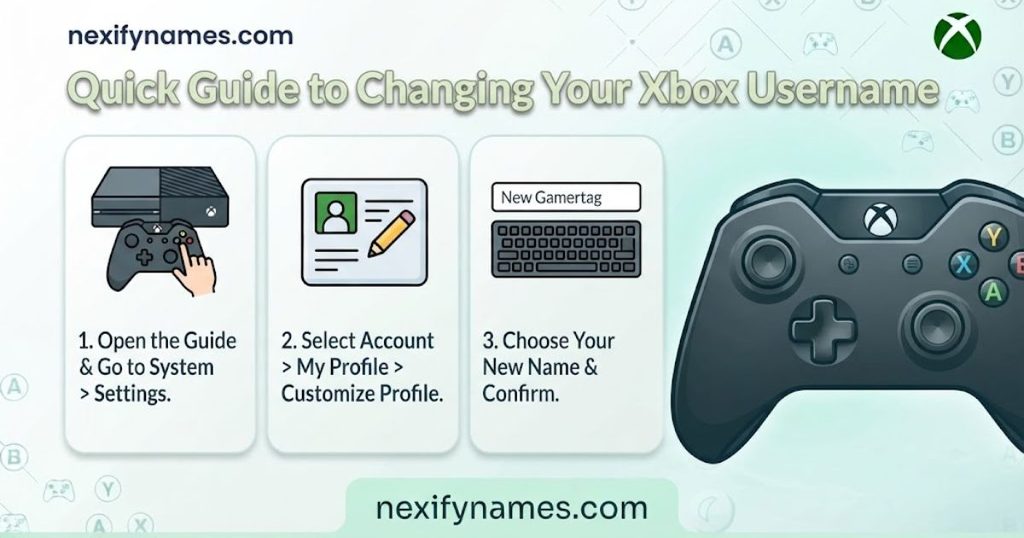
Quick Guide to Changing Your Xbox Username
Here’s the short version if you already know what you want:
- Sign into the correct Xbox account.
- Open your Xbox profile.
- Find your current Gamertag.
- Select the edit or customization option.
- Enter your new name.
- Check Gamertag availability.
- Review the displayed version.
- Check whether a charge applies.
- Confirm the change.
- Reopen your profile and verify the new name.
If you want a new identity but don’t want to lose your existing account, changing the Gamertag is the relevant process.
How Often Can You Change Your Xbox Gamertag?
There isn’t a simple rule that says you should change your Gamertag whenever you want without checking the current account conditions.
The practical approach is to review Microsoft’s current change process when you’re ready. If a charge or account-specific limitation applies, you’ll want to know before confirming.
That’s another reason to avoid making impulsive changes. Pick a name you’re comfortable keeping.
How to Change Your Xbox Username Without Losing Your Games
A Gamertag change is different from creating a new Xbox account.
You’re updating the gaming identity associated with your existing profile rather than starting over with an unrelated account.
So, if you’re worried about your games or gaming history, don’t create a new account just because you dislike your current Gamertag.
Instead, use the Gamertag change process on your existing Xbox profile.
Why Is My Xbox Gamertag Not Updating After I Change It?
If the new Gamertag doesn’t appear everywhere immediately, first check your main Xbox profile.
If the profile shows the new name, restart the affected app or game and sign in again.
Also remember that Microsoft says some account display-name changes can take time to appear across services. That information applies specifically to Microsoft display-name updates, which are separate from Gamertag changes.
If the old name remains only in one game or service, that service may handle profile synchronization separately.
Does Changing Your Gamertag Affect Xbox Game Progress?
Changing your Gamertag isn’t the same as creating a new Xbox account. Your existing gaming profile remains associated with your account.
Can You Use the Same Gamertag as Another Xbox Player?
Xbox’s current Gamertag system can distinguish players with the same base name through a suffix or discriminator when applicable.
How Long Does It Take for a New Xbox Username to Update?
Your Xbox profile should reflect a completed change, but individual games or services may take additional time to refresh their displayed account information.
Frequently Asked Questions
How do I change Xbox Gamertag without changing my Microsoft account?
Use your Xbox profile’s Gamertag controls; changing the Microsoft display name separately won’t change your Xbox gaming identity.
Can I change my Xbox Gamertag from my phone?
Yes, use a mobile browser to access Xbox services, sign into your account, and manage your Gamertag settings there.
Why does my Xbox Gamertag have numbers?
Xbox may add a discriminator or suffix when multiple players use the same base Gamertag, keeping profiles distinguishable.
Will changing my Xbox Gamertag create a new account?
No. A Gamertag change updates your existing Xbox gaming identity rather than requiring an entirely separate Microsoft account.
Can I change my Xbox name on PC?
Yes. Sign into Xbox.com from your PC, open your Xbox profile, and use the available Gamertag editing controls.
What should I do if my preferred Xbox Gamertag is taken?
Try combining the original idea with another meaningful word, creating a distinctive name without relying on random numbers.
Is changing an Xbox Gamertag the same as changing my Microsoft name?
No. Microsoft treats the account display name and Xbox Gamertag as separate settings with different purposes.
Final Thoughts
Learning how to change Xbox Gamertag doesn’t require starting over with a new gaming account. The main thing is knowing that your Xbox Gamertag and Microsoft account display name are separate.
Whether you’re using an Xbox Series X|S, Xbox One, PC, or phone, start with the Xbox profile connected to the correct Microsoft account. From there, find your Gamertag settings, enter your new name, review the result, and confirm the change.
Take a little time with the name itself, too. A good Gamertag should be easy to remember and comfortable to use. If your first choice isn’t available, create a variation that still feels personal.
Most importantly, check the final version before confirming. Look at the spelling, suffix, numbers, and overall appearance. That small review can save you from regretting your Xbox Gamertag change later.