Your Xbox gamertag is more than just a name; it’s how friends recognize you in every game. If you’re tired of your current username or want something fresh, changing it is easier than you might think. You don’t need to create a new account or lose your gaming progress. A few simple steps can give your profile a whole new look.
In this guide, you’ll learn how to change Xbox gamertag on different devices, including your console, computer, and phone. We’ll explain how the gamertag system works, whether changing your name costs money, and why some Xbox gamertags have numbers at the end. You’ll also learn what to do if your preferred name is already taken.
Whether you’re updating an old profile or choosing a name that fits your gaming style, we’ve got you covered. Keep reading to learn how to change your Xbox gamertag, including how to change Xbox gamertag on phone, without unnecessary confusion.
What Is an Xbox Gamertag?
An Xbox gamertag is the gaming name linked to your Xbox profile. Other players may see it when you play multiplayer games, interact with friends, or use supported Xbox services. Think of it as your public identity in the Xbox gaming community.
Your gamertag is different from the display name on your Microsoft account. If you want other Xbox players to see a new name, you need to change your gamertag specifically. Editing your general Microsoft account name won’t accomplish that.
Xbox Gamertag vs. Microsoft Account Name
These two names are easy to mix up, especially if you use the same Microsoft account for Windows and Xbox. However, they serve different purposes. Your Microsoft account display name appears across supported Microsoft services, while your gamertag identifies your gaming profile.
Before making changes, decide which name you actually want to update. If your Xbox profile still shows the old name after you edit your Microsoft display name, that’s expected. You’ll need to use the Xbox gamertag settings instead.
- Xbox gamertag: Your public gaming identity.
- Microsoft account display name: Your general name across Microsoft services.
- Windows account name: The name associated with your Windows profile.
How to Change Your Xbox Gamertag on Xbox Series X|S
You can usually change your gamertag directly from your Xbox Series X or Series S. First, sign in to the correct Microsoft account. If several people share your console, double-check the active profile before continuing.
The exact menu labels may vary with Xbox updates, but the general process is straightforward. Follow these steps and review the final name before confirming.
Step 1: Turn On Your Xbox Console
Start your Xbox Series X|S and sign in to the account whose gamertag you want to change. Make sure you’re using your own profile rather than another family member’s account.
Step 2: Open the Xbox Guide
Press the Xbox button on your controller to open the Guide. This menu provides quick access to your profile, settings, and other console features.
Step 3: Navigate to Your Profile
Open the profile and system area, then select your Xbox profile. Check the account details to make sure you’ve selected the right one.
Step 4: Open Profile Customization
Look for My Profile and then the option to customize your profile. Depending on your console’s software version, the wording or menu placement may differ slightly.
Step 5: Select Your Current Gamertag
Choose your current gamertag to access the available editing options. Look for the option to select or change your gamertag.
Step 6: Enter Your New Xbox Username
Type the name you want to use. Choose something that’s easy to remember, simple to spell, and suitable for your gaming style.
Here are five ideas to inspire you:
- NovaStrike
- ShadowVex
- FrostByte
- PixelRogue
- LunarEcho
These are suggestions, not guaranteed available names. Xbox will check whether your selected gamertag can be used.
Step 7: Check Gamertag Availability
Review the availability result after entering your preferred name. If Xbox can’t offer it in the form you want, try a variation or choose a different name.
Adding a meaningful word can help. For example, you might change NovaStrike to NovaStrikeX or NovaStrikeLive.
Step 8: Preview Your New Gamertag
Before continuing, review the final version shown on screen. Check the spelling, capitalization, and any numbers or suffixes Xbox includes.
Don’t skip this step. A small typo can make your new gaming identity look different from what you intended.
Step 9: Confirm and Save Your Changes
If everything looks right, follow the on-screen instructions to confirm the change. Review any displayed fee before proceeding.
Once the change completes, check your Xbox profile to make sure the new gamertag appears correctly.
How to Change Your Xbox Gamertag on Xbox One
The process on Xbox One is similar to the steps for newer Xbox consoles. Sign in to the correct profile, open the Guide, and navigate to your profile customization settings.
Follow this general sequence:
- Press the Xbox button on your controller.
- Open Profile & system.
- Select your profile and choose My profile.
- Open Customize profile.
- Select your current gamertag.
- Enter the new name you want.
- Check availability and review the preview.
- Confirm the change if you’re satisfied.
Menu labels can vary by software version. If you can’t find the option, try managing your gamertag through Xbox.com instead.
How to Change Your Xbox Gamertag Online
You don’t need to sit in front of your console to update your gaming name. You can manage your Xbox profile through the official Xbox website using a browser on a computer or another device.
Start by signing in with the Microsoft account linked to your Xbox profile. Then open your profile and look for the gamertag editing option. If the website’s layout has changed, check the profile or account settings for the current route.
Step 1: Visit the Official Xbox Website
Open Xbox.com in your browser. Make sure the address belongs to the official Xbox website before entering your account details.
Step 2: Sign In to Your Xbox Profile
Sign in with the Microsoft account associated with your gaming profile. Using a different account could display the wrong gamertag.
Step 3: Find Your Current Gamertag
Open your profile menu and look for the option to view your full Xbox profile. Find your current gamertag and select its editing option if available.
Step 4: Enter Your New Gamertag
Type your preferred name into the field provided. If you don’t have a name in mind, consider a variation based on your favorite game style or gaming personality.
Step 5: Review the Gamertag Preview
Check the displayed name carefully. Make sure the spelling is correct and that you’re happy with any suffix or numbers included.
Step 6: Confirm the Change
Follow the on-screen instructions to complete the update. If a fee applies, review the amount before confirming. Afterward, open your Xbox profile again to verify the change.
How to Change Your Xbox Gamertag on a Phone
You can manage your gamertag from a smartphone using a mobile browser. This is useful when you don’t have access to your console or computer.
Open your browser, visit Xbox.com, and sign in to the Microsoft account linked to your Xbox profile. Open your profile, find the gamertag editing option, enter your new name, and review the result before confirming.
If you’re using the Xbox mobile app and can’t find the required setting, try the website in your phone’s browser. The mobile interface can differ from the desktop version, so the exact buttons may not appear in the same places.
How to Change Your Xbox Gamertag on a PC
You can change your Xbox gamertag from a Windows PC without owning an Xbox console. The easiest option is generally to use Xbox.com and manage the gamertag associated with your account.
Sign in, open your Xbox profile, and locate the option to edit your gamertag. Enter your preferred name, check availability, review the final version, and confirm the change. Remember that changing your Windows account name or Microsoft display name won’t automatically change your Xbox gamertag.
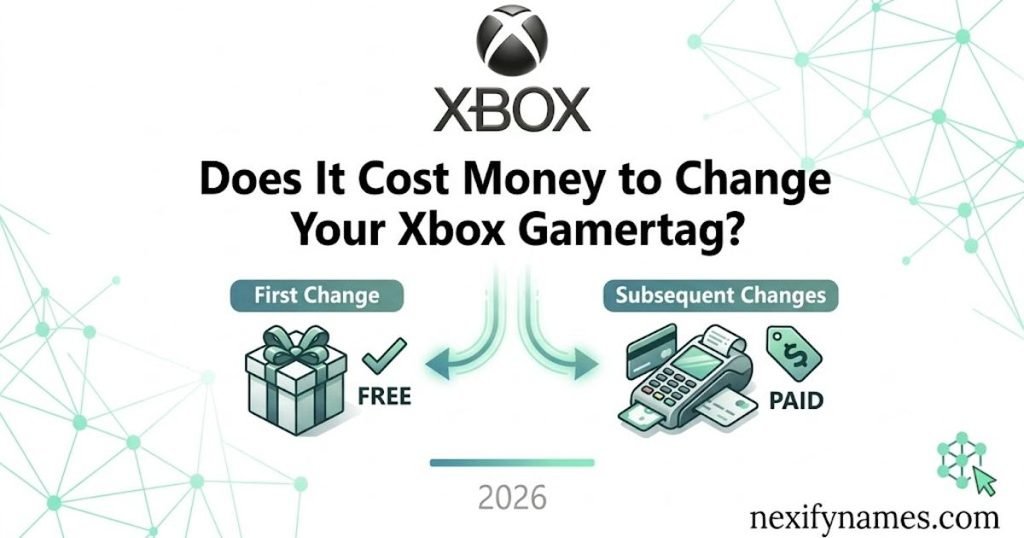
Does It Cost Money to Change Your Xbox Gamertag?
The Xbox gamertag change cost depends on your account and the current Xbox policy. Microsoft has historically offered an initial gamertag change at no charge, while later changes may require payment. However, don’t rely on old pricing information without checking your account.
Before you finish, review the confirmation screen for any applicable fee. If Xbox asks for payment, make sure you’ve chosen the correct profile and entered the name you want. It’s better to double-check now than pay for a change you regret.
Why Does My Xbox Gamertag Have Numbers at the End?
You might choose a name you love, only to see numbers attached to it. This can happen because Xbox supports a modern gamertag system that allows multiple players to use the same base name with different suffixes.
For example, another player may already use the name you want. Xbox may distinguish your version with a number or identifier. The exact appearance depends on the gamertag system and how Xbox displays your profile.
If you prefer a name without extra numbers, try a more distinctive variation. Adding a meaningful word can help you create a gaming identity that feels more personal.
How to Choose a Good Xbox Gamertag
Your gamertag can follow you through countless matches, so take a little time to choose one. The best names are memorable, easy to spell, and suited to your personality. You don’t need complicated symbols or random numbers to stand out.
Choose a Name That’s Easy to Remember
Short, recognizable names are easier for friends to recall and search for. Think about what someone would remember after playing one match with you.
Here are five simple ideas:
- Nova
- Shadow
- Frost
- Blaze
- Echo
Avoid Complicated Spellings and Extra Symbols
Unusual spellings can make your name harder to share with friends. If people struggle to spell it, they may have trouble finding your profile. Keep the name readable and avoid adding unnecessary characters just to make it look different.
Pick a Gamertag That Matches Your Gaming Style
Your name can reflect the games you play or the personality you bring to them. Competitive players might prefer sharp, powerful names, while casual players may enjoy something playful.
For example, a competitive gamer might choose VortexAce, while someone who loves cozy games could use MochiQuest.
Choose a Name You’ll Still Like in the Future
A name based on a temporary trend might feel outdated sooner than you expect. Think about whether you’ll still enjoy it after changing games or meeting new teammates.
If you’re unsure, choose something that reflects your personality rather than a short-lived joke. That way, your gamertag can grow with you.
Xbox Gamertag Ideas for Every Gaming Style
Need inspiration before making the change? Start with a style that feels right for you. These suggestions can help you brainstorm, but you’ll still need to check availability through Xbox.
Cool Xbox Gamertag Ideas
If you want a confident, memorable gaming identity, consider names with a strong sound or a futuristic feel.
- ShadowVex
- NightRogue
- FrostByte
- NovaStrike
- PhantomX
- BlazeCore
- VoidHunter
- DarkOrbit
- StormRush
- TitanMode
- VortexFang
- RoguePulse
- IronPhantom
- ZeroGravity
- CrimsonWolf
Funny Xbox Gamertag Ideas
A funny gamertag can make your profile more memorable before the match even starts. Try a name that pokes fun at gaming mishaps or your laid-back personality.
- LaggingAgain
- OopsIDied
- PotatoAim
- RespawnPlease
- NoobEnergy
- MissedAgain
- CampedHere
- ButtonMasher
- SnackBreak
- LoadingBro
- WiFiWarrior
- AccidentalPro
- PanicReload
- LootGoblin
- SorryMyBad
Cute Xbox Gamertag Ideas
Cute names work well if you prefer a friendly, cozy, or playful gaming identity. Mix soft words, animals, food, or dreamy themes to create your own style.
- MochiPanda
- BunnyPixel
- CozyBean
- CookiePuff
- TinyMochi
- PeachyPlay
- FluffyPixel
- PandaBubbles
- HoneyGamer
- StarryBean
- CherryCloud
- SleepyBunny
- SugarComet
- LittleDaisy
- MarshmallowFox
Aesthetic Xbox Gamertag Ideas
Aesthetic gamertags often use celestial, dreamy, minimalist, or mysterious themes. These names can suit players who want something stylish without making it overly complicated.
- MoonlitVibe
- VelvetPixel
- LunarEcho
- CloudyNova
- MysticMoon
- SilverVibe
- DreamyPixel
- TwilightAce
- SoftOrbit
- StarlitX
- IvorySkies
- CosmicPetal
- MidnightBloom
- VelvetDusk
- OpalHorizon
What Happens After You Change Your Xbox Gamertag?
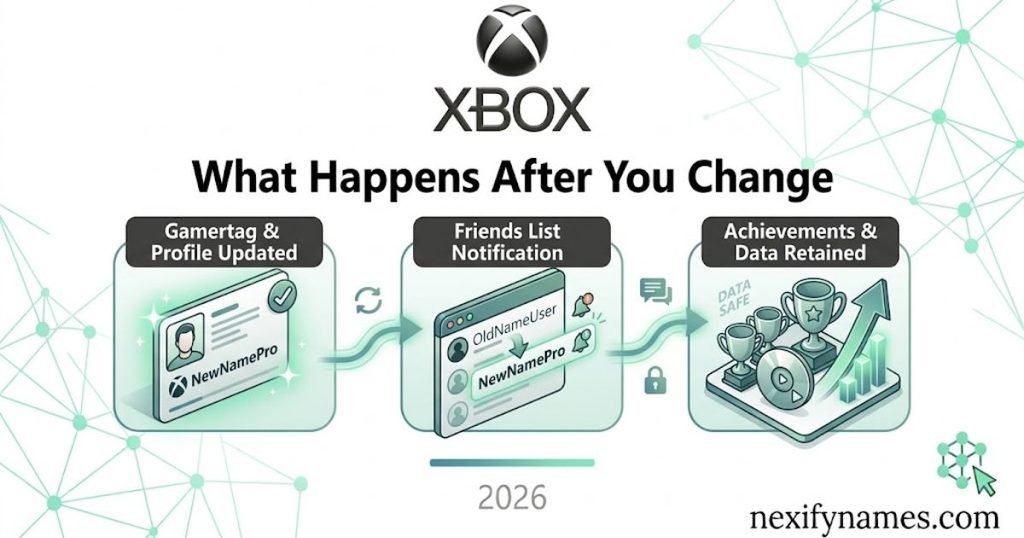
Once Xbox completes your gamertag change, your profile should use the new name. It may appear across your Xbox profile, friends list, multiplayer experiences, and supported gaming services.
However, updates don’t always appear everywhere at the same moment. Some games or connected services may take time to refresh your information. If the old name remains visible, try restarting the game or signing out and back in before attempting another change.
Will Your Friends See Your New Xbox Gamertag?
Yes, your Xbox profile will use your updated gamertag after the change takes effect. Friends may notice it in their friends lists, messages, or supported multiplayer games.
If you’ve chosen a completely different name, your regular gaming friends might not recognize you right away. Consider telling them about the change before your next gaming session. This simple step can prevent confusion when your new name appears.
Can You Change Your Microsoft Account Name Instead?
You can update your Microsoft account display name, but that won’t change your Xbox gamertag. The two names serve different purposes, even when they’re connected to the same account.
If you want a different name on your Xbox gaming profile, use the gamertag editing option. If you only want to update the name associated with other Microsoft services, change your Microsoft account display name instead.
Common Mistakes to Avoid When Changing Your Xbox Gamertag
Changing your name is usually simple, but a few mistakes can lead to confusion or unwanted results. Take a moment to review your account and the new name before confirming.
Changing Your Microsoft Display Name Instead
This is one of the easiest mistakes to make. Updating your Microsoft account display name won’t automatically update the name other Xbox players see. Make sure you’re editing your gamertag.
Signing In With the Wrong Microsoft Account
If you manage multiple Microsoft accounts, check which one is connected to your Xbox profile. Otherwise, you might change the wrong gamertag or wonder why your expected profile isn’t appearing.
Choosing a New Name Too Quickly
It’s tempting to select the first available name and move on. However, your gamertag may become part of your long-term gaming identity. Take a moment to decide whether it really suits you.
Skipping the Gamertag Preview
Always review the final version before confirming. Check the spelling, capitalization, and any extra numbers or suffixes. A quick review can save you from an unwanted result.
Forgetting About the Number Suffix
Xbox may add a suffix when your chosen name isn’t unique in the way you expected. Check how the complete gamertag appears rather than focusing only on the base name.
Choosing an Inappropriate Gamertag
Avoid names that violate Xbox community standards, including offensive or hateful language. A name that breaks platform rules may be rejected or create account problems.
Is It Safe to Change Your Xbox Gamertag?
Changing your gamertag through official Xbox tools is a normal account-management task. You don’t need a third-party website or an unofficial username generator to complete the change.
Be careful with websites that promise rare gamertags, guaranteed availability, or free changes in exchange for your Microsoft login details. Never share your password with an unofficial service. Use Microsoft’s official sign-in process and Xbox profile settings instead.
What If Your New Xbox Gamertag Is Already Taken?
If Xbox doesn’t allow your preferred name in the form you want, try a variation that still feels personal. You could add a meaningful word, combine two interests, or use a different spelling that remains easy to read.
For example, if ShadowFox isn’t available, you could try:
- ShadowFoxNova
- TheShadowFox
- ShadowFoxLive
- ShadowFoxZone
- ShadowFoxQuest
These alternatives aren’t guaranteed to be available. Enter your favorite option into Xbox’s gamertag editor to check whether you can use it.
How to Fix Xbox Gamertag Change Problems
If Xbox won’t let you change your gamertag, don’t keep submitting the same request. Start with a few basic checks to identify whether the issue involves your connection, account, chosen name, or Xbox services.
1. Check Your Internet Connection
Make sure your console, phone, or computer has a stable internet connection. If other online features aren’t working either, resolve the connection issue before trying again.
2. Verify Your Microsoft Account
Confirm that you’re signed in to the Microsoft account linked to the Xbox profile you want to edit. If you’re using the wrong account, switch to the correct one before continuing.
3. Try Changing Your Gamertag on Xbox.com
If the console menu isn’t working, try accessing your profile through Xbox.com. Using a browser can help you determine whether the problem is limited to the console interface.
4. Restart Your Xbox Console
Restarting your console can refresh its connection and account information. Once it starts again, sign in and check whether the gamertag editing option works.
5. Check Xbox Service Status
A temporary Xbox service issue may interfere with account features. Check the official Xbox service status page before assuming something is wrong with your profile.
6. Review Your New Gamertag
Make sure your chosen name meets Xbox’s current requirements. If the name is unavailable or rejected, try another variation instead of repeatedly submitting the same one.
7. Contact Xbox Support
If you’ve checked everything and still can’t change your name, contact official Xbox Support. This is especially important if you encountered an account-specific error or a payment problem.
Why Is My Old Xbox Gamertag Still Showing?
Sometimes, a game or app continues to display your old name after the change. This doesn’t necessarily mean the update failed. The service may not have refreshed your profile information yet.
Try these steps:
- Close and reopen the game.
- Restart your Xbox console.
- Sign out and sign back in.
- Restart the Xbox app if you’re using it.
- Check your gamertag on your Xbox profile online.
If your new name appears on your Xbox profile but not in one particular game, the issue may involve that game’s account synchronization. Contact the game’s support team or Xbox Support if the problem continues.
Xbox Gamertag Tips Before You Confirm Your New Name
Before completing your gamertag change, pause and review the details. A few quick checks can help you avoid choosing a name you don’t actually want.
- Check the spelling: Make sure every letter is correct.
- Review the suffix: Confirm that any extra numbers look right.
- Think about future use: Choose a name you’ll enjoy across different games.
- Check the price: Review any fee displayed before confirming.
- Verify your account: Make sure you’re changing the intended profile.
If you’re uncertain about your choice, take more time. There’s no need to rush into a name just because it’s available.
Quick Guide to Changing Your Xbox Gamertag
Want the short version? Here’s the basic process for changing your Xbox gaming name.
- Sign in to the correct Microsoft account.
- Open your Xbox profile.
- Find the gamertag editing option.
- Enter your preferred name.
- Check whether it’s available.
- Review the final gamertag and suffix.
- Check for any applicable fee.
- Confirm the change.
- Reopen your profile to verify the update.
You can generally follow this process through your console or Xbox.com. The exact menus may differ depending on the device and current interface.
How Often Can You Change Your Xbox Gamertag?
You can change your gamertag again, but the applicable rules and fees may depend on your account and Xbox’s current policy. Before making another change, check the options shown in the official gamertag editor.
It’s also worth remembering that your old name may not remain available forever. If you think you might want to return to a previous gamertag, consider that possibility before confirming a new one.
Can You Change Your Xbox Username More Than Once?
Yes, you can generally change your Xbox gamertag more than once. However, the availability of each name and any applicable fees can vary. Check the confirmation screen before completing another change.
Can You Change Your Xbox Gamertag Without Losing Games or Progress?
Changing your gamertag updates the name associated with your existing Xbox profile. It doesn’t mean you’re creating an entirely new account, so you generally keep using the same profile.
Your games, achievements, and other account-linked information remain associated with that account. Still, individual games may display profile information differently or take time to refresh. If you notice an unexpected issue, check the affected game’s support information.
Will Changing Your Xbox Username Affect Your Game Saves, Achievements, or Subscriptions?
A gamertag change isn’t the same as deleting your account. Your existing profile remains in place, so your account-linked games, achievements, and subscriptions generally stay associated with it.
How to Change Your Xbox Gamertag if You Forgot Your Microsoft Account Details
Before changing your gamertag, you’ll need access to the Microsoft account linked to your Xbox profile. If you’ve forgotten your sign-in details, recover your account first rather than creating a new one unnecessarily.
Use Microsoft’s official account recovery process to regain access. Once you’ve signed in successfully, open your Xbox profile and continue with the gamertag change. Never give your password or recovery codes to an unofficial service promising to change your name.
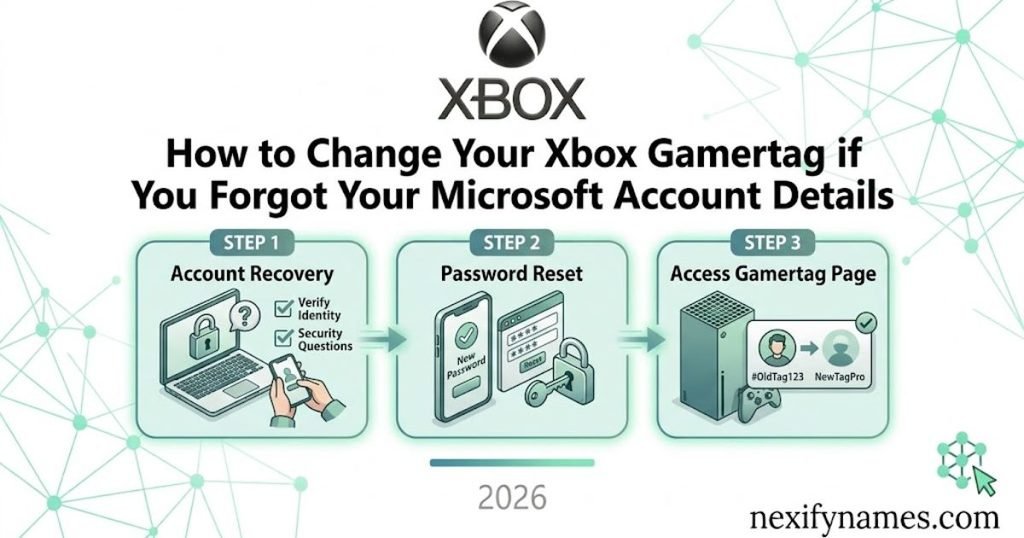
How to Recover Your Microsoft Account Before Changing Your Gamertag
Start with Microsoft’s official sign-in and account recovery options. Follow the identity verification steps provided, then confirm that you’ve recovered the account connected to your Xbox profile. After signing in, return to the gamertag settings.
Frequently Asked Questions
What is an Xbox username called?
An Xbox gamertag is the gaming name linked to your Xbox profile and shown to other players across supported services.
How do I change my Xbox gamertag?
To change your Xbox gamertag, open your profile, edit the current name, check availability, review any fee, and confirm the change.
Can I change my Xbox gamertag online?
Yes, sign in to Xbox.com with the Microsoft account linked to your Xbox profile, then use the gamertag editing option.
Can I change my Xbox gamertag on my phone?
Yes, use your phone’s browser to sign in to Xbox.com, open your profile, edit your gamertag, and confirm the change.
Is changing an Xbox gamertag free?
Your first change may be free, while later changes can cost money; check the official confirmation screen for current pricing.
Why does my Xbox gamertag have numbers?
Xbox may add numbers when a base gamertag isn’t unique, helping distinguish players who use the same or similar names.
Will changing my Xbox gamertag delete my games?
No, changing your gamertag doesn’t create a new account; your profile, achievements, and account-linked games generally remain linked to it.
Final Thoughts
Learning how to change Xbox gamertag is simple once you know where to find the correct settings. You can usually make the change through your Xbox console or by managing your profile on Xbox.com.
Before confirming, check your spelling, review any suffix, and make sure you’re signed in to the correct Microsoft account. Also, check whether a fee applies to your change.
Most importantly, choose a gamertag that feels right for you. Whether you prefer something cool like ShadowVex, funny like PotatoAim, cute like MochiPanda, or simple like Nova, your new name should reflect your gaming style. Take your time, confirm the details, and enjoy your refreshed Xbox identity.
Pingback: Male Teacher 950+ Ideas for Stories, Classrooms, and Fictional Characters